11 Tips & Tricks for Apple Pencil
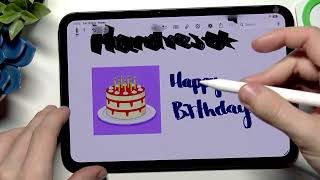
Description: If you want your iPad Mini to feel like a pro writing tablet, I’m showing you eleven tricks for the Apple Pencil Pro that cover both the Pro model and the USB-C version. You’ll learn how to enable Auto Refine Handwriting in Notes so you preserve your style while improving readability, use the Magic Wand to turn rough sketches into AI-generated images, and access a quick toolbar by squeezing the pencil. I show you how to double-tap to switch between pen and eraser, hold down on shapes like triangles or hearts to refine them instantly, and rotate the pencil to change line thickness or pressure sensitivity. You can also slide from the bottom corners for quick notes or screenshots, use Scribble to type text anywhere including joining words with a line, add the device to Find My to locate it via nearby Apple devices, and enable Access Notes from Lock Screen in Settings → Apps → Notes to start writing immediately without unlocking.
How to use Apple Pencil Pro tricks on iPad Mini?
How to turn sketches into AI images with Magic Wand?
How to find a lost Apple Pencil Pro with Find My?
0:00 Go to Notes app to start with handwriting features
0:36 Enable auto refine handwriting in Notes settings
2:26 Use Magic Wand to convert sketches to AI images
3:46 Squeeze Apple Pencil Pro to open quick toolbar
4:54 Double tap APPLE Pencil Pro to switch between pen and eraser
5:23 Draw shapes and hold to auto-correct them
6:49 Rotate APPLE Pencil Pro to change line thickness
8:02 Slide from corner to create quick note or screenshot
8:44 Use Scribble feature to write text in any field
11:17 Add APPLE Pencil Pro to Find My network
13:27 Enable access notes from lock screen in Settings
#ApplePencil #APPLEPencilPro2026 #iPadTips #DigitalArt
Find out more:
https://www.hardreset.info/devices/apple/apple-pencil-pro-2026/
Follow us on Instagram ► https://www.instagram.com/hardreset.info
Like us on Facebook ► https://www.facebook.com/hardresetinfo/
Tweet us on Twitter ► https://twitter.com/HardResetI
Support us on TikTok ► https://www.tiktok.com/@hardreset.info
Use Reset Guides for many popular Apps ► https://www.hardreset.info/apps/apps/ Close description
How to use Apple Pencil Pro tricks on iPad Mini?
How to turn sketches into AI images with Magic Wand?
How to find a lost Apple Pencil Pro with Find My?
0:00 Go to Notes app to start with handwriting features
0:36 Enable auto refine handwriting in Notes settings
2:26 Use Magic Wand to convert sketches to AI images
3:46 Squeeze Apple Pencil Pro to open quick toolbar
4:54 Double tap APPLE Pencil Pro to switch between pen and eraser
5:23 Draw shapes and hold to auto-correct them
6:49 Rotate APPLE Pencil Pro to change line thickness
8:02 Slide from corner to create quick note or screenshot
8:44 Use Scribble feature to write text in any field
11:17 Add APPLE Pencil Pro to Find My network
13:27 Enable access notes from lock screen in Settings
#ApplePencil #APPLEPencilPro2026 #iPadTips #DigitalArt
Find out more:
https://www.hardreset.info/devices/apple/apple-pencil-pro-2026/
Follow us on Instagram ► https://www.instagram.com/hardreset.info
Like us on Facebook ► https://www.facebook.com/hardresetinfo/
Tweet us on Twitter ► https://twitter.com/HardResetI
Support us on TikTok ► https://www.tiktok.com/@hardreset.info
Use Reset Guides for many popular Apps ► https://www.hardreset.info/apps/apps/ Close description